
- Quick Start
- Step 4
Step 4: Final global stretch
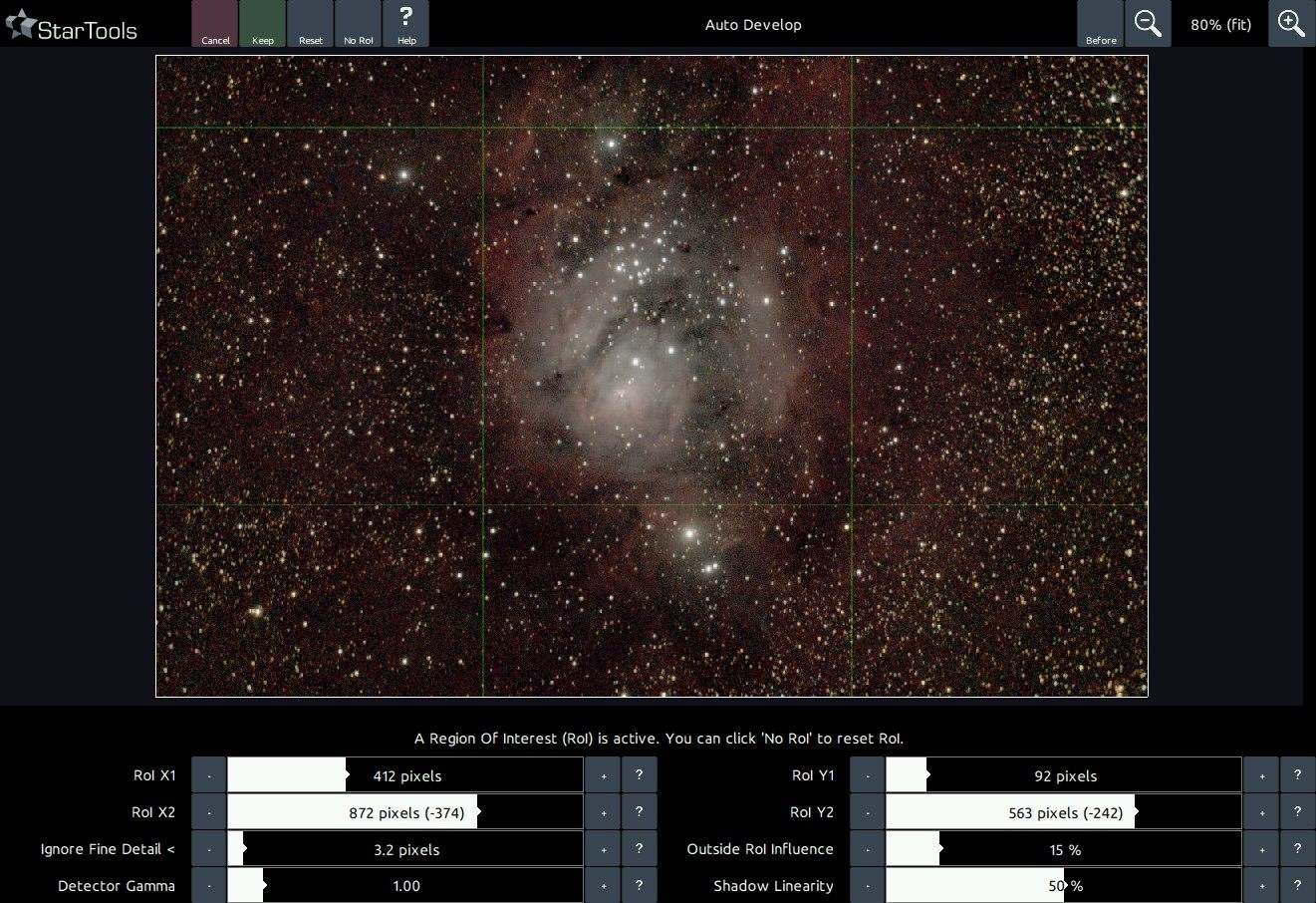
Once all issues are fixed, launch AutoDev again and tell it to 'redo' the stretch. If all is well, AutoDev will now create a histogram stretch that is optimised for the "real" object(s) in your cleaned-up dataset.
If your dataset is very noisy, it is possible AutoDev will optimise for the fine noise grain, mistaking it for real detail. In this case you can tell it to Ignore Fine detail.
If your object(s) reside on an otherwise uninteresting or "empty" background, you can tell AutoDev where the interesting bits of your image are by clicking & dragging a Region Of Interest ("RoI"). There is no shame in trying multiple RoIs. AutoDev will keep solving for a global strecth that best shows the detail in your RoI.
Understanding how AutoDev works is key to getting superior results with StarTools.
If even visible, don't worry about the colouring just yet - focus getting the detail out of your data first. If your image shows very bright highlights, know that you can "rescue" them later on using, for example, the HDR module.
You may also be interested in...
- L. B., United States (under Testimonials)
I'm relatively new to image processing and just wanted to say how straight forward and powerful StarTools is.
- Video (under Quick Start)
Please refer to the video description below the video for the source data and other helpful links.
- Zooming, panning and scaling (under Interface)
Even the way StarTools displays and scales images, has been created specifically for astrophotography.
- Mouse controls (under Interface)
As of 1.7, enhanced mouse controls are implemented; Zoom in.
- Standalone Virtual Reality experience (under Exporting 3D)
The 'WebVR' button in the module exports your image as a standalone HTML file.